
Download PDFOutliner – Free PDF Table of Contents Generator for Windows, macOS & iOS
Overview of PDFOutliner
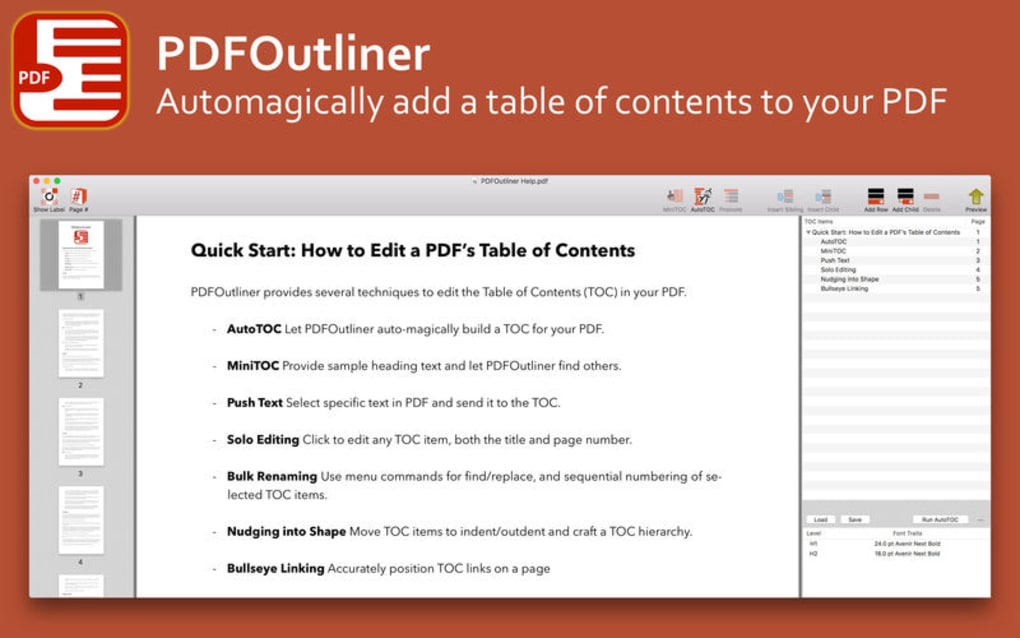
PDFOutliner is a purpose‑built utility that turns ordinary PDF files into professionally organized documents by automatically generating a clickable table of contents. Whether you are a graduate student preparing a thesis, an engineer compiling a series of design reports, or a researcher handling scanned archives, PDFOutliner saves you the hours normally spent manually creating a contents page. The app reads the structure of your PDF—recognizing headings, sub‑headings, and page numbers—and builds a hierarchical outline that appears as a sidebar or pop‑over in most PDF readers. It works with native PDFs exported from Pages.app, scanned PDFs that have undergone OCR, and even multi‑page scanned bundles that you want to merge into a single, navigable file. While the tool is not aimed at casual PDF readers, its focused feature set makes it indispensable for anyone who needs a clean, searchable contents page without learning complex editing software.
The core value proposition of PDFOutliner lies in its simplicity. After a quick import, the app scans the document, suggests a structure based on detected text styles and page breaks, and lets you fine‑tune the hierarchy with drag‑and‑drop controls. Once satisfied, you export the PDF, and the new outline is embedded directly into the file’s metadata. This means the table of contents works seamlessly across platforms—Windows, macOS, iOS, and Android—without requiring a special viewer. Security is also baked in; PDFOutliner processes files locally, so no data is uploaded to the cloud, ensuring that confidential reports remain private.
Key Features and Compatibility
- Automatic detection of headings and sub‑headings using built‑in OCR support.
- Drag‑and‑drop reordering of outline items for precise hierarchy control.
- Support for multi‑page scanned documents – combine, reorder, and outline in one step.
- Export to PDF with embedded outline that appears in any standard PDF reader.
- Cross‑platform compatibility: Windows 10/11, macOS 12+, iOS 14+, Android 9+.
- Secure, offline processing – no internet connection required.
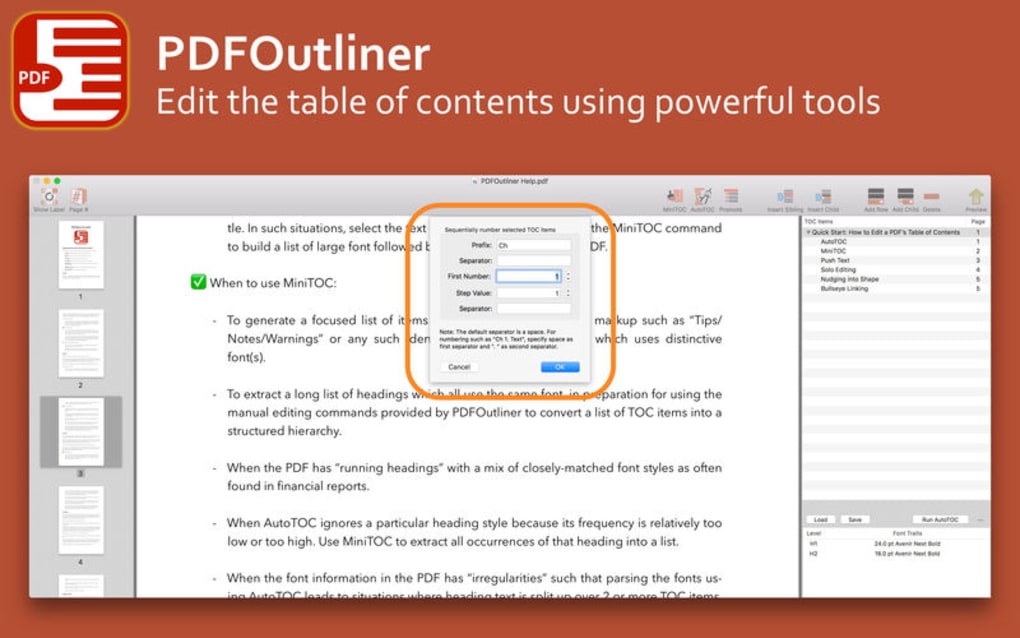
- Customizable styles: choose font size, indentation, and numbering scheme.
- Batch processing – outline multiple PDFs in a single workflow.
PDFOutliner runs natively on the most common desktop and mobile operating systems. On Windows, the installer supports both 64‑bit and 32‑bit environments, integrating with the context menu for quick right‑click access. macOS users can download a signed .dmg package that installs to the Applications folder and adds a Services entry for seamless use from Finder. Mobile users on iOS and Android benefit from a lightweight companion app that lets you import PDFs from cloud storage services (iCloud, Google Drive, OneDrive) and generate outlines on the go. All versions share the same feature set, ensuring a consistent experience whether you’re working at a desk or in the field.
Installation, Usage Instructions, and Pros & Cons
Step‑by‑Step Installation
- Visit the official PDFOutliner download page and click the Download button for your operating system.
- Windows: Run the
PDFOutliner_Setup.exefile, follow the wizard, and accept the license agreement. - macOS: Open the
PDFOutliner.dmg, drag the app to your Applications folder, and confirm the security prompt if needed. - iOS/Android: Search “PDFOutliner” in the App Store or Google Play, then tap Install.
- After installation, launch the app. On first run, you’ll be guided through a brief tutorial that explains the main interface.
How to Generate a Table of Contents
1. Click Import PDF and select the file you wish to outline. PDFOutliner will display a preview of each page.
2.
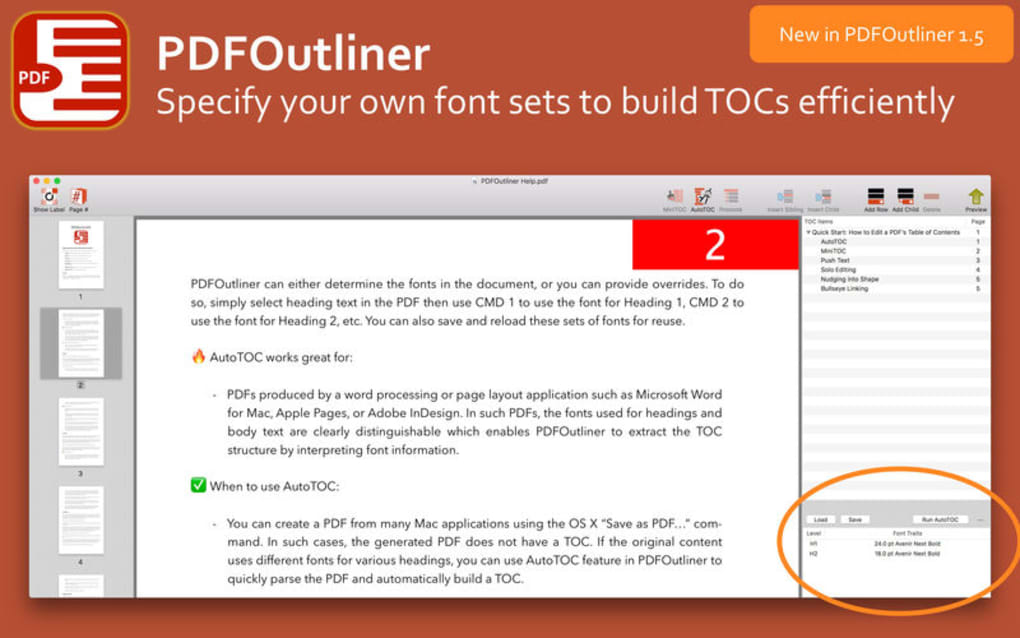
The built‑in OCR engine scans the document for heading patterns. Detected headings appear in the left‑hand panel as a tentative outline.
3. Review the list: you can rename items, change heading levels (e.g., from H2 to H3), or merge adjacent entries using the Merge button.
4.
Drag any entry up or down to reorder sections, or nest items by dragging them slightly to the right.
5. Once satisfied, click Export. Choose a destination folder; the app writes a new PDF with the outline embedded.
6.
Open the exported file in your favorite PDF reader. The table of contents will appear as a clickable sidebar or pop‑over, allowing instant navigation.
Pros & Cons
- Pros
- Fast, fully automated outline generation saves hours of manual work.
- OCR support makes it ideal for scanned reports and legacy documents.
- Cross‑platform availability ensures the same workflow on Windows, macOS, iOS, and Android.
- All processing happens locally, preserving data confidentiality.
- Intuitive drag‑and‑drop interface requires no prior PDF editing experience.
- Cons
- Limited to outline creation – does not offer full PDF editing (e.g., annotation, redaction).
- Advanced formatting options (custom icons, multi‑language support) are not available in the free tier.
- Large scanned PDFs (>200 MB) may experience slower OCR processing on older hardware.
Frequently Asked Questions
Can PDFOutliner edit existing bookmarks in a PDF?
PDFOutliner focuses on generating a new outline based on detected headings. It does not modify existing bookmarks, but you can import a PDF, create a fresh outline, and then export the file, which will replace previous bookmarks with the newly generated structure.
Is the OCR engine accurate for handwritten notes?
The built‑in OCR is optimized for printed text and standard fonts. Handwritten notes may be recognized with lower accuracy, so you might need to manually adjust headings after the initial scan.
Do I need an internet connection to use PDFOutliner?
No. All processing, including OCR, occurs locally on your device. An internet connection is only required for downloading updates or the initial installer.
Can I batch‑process multiple PDFs at once?
Yes. The desktop versions include a batch mode where you can add a folder of PDFs, apply the same outline settings, and export all files automatically.
What file formats does PDFOutliner accept for import?
PDFOutliner accepts standard PDF files (.pdf). For scanned documents, you must first convert the images to PDF using any scanner software; PDFOutliner will then run OCR on the resulting PDF.
Conclusion & Call to Action
If you regularly produce multi‑chapter reports, theses, or technical documentation, PDFOutliner is the most efficient way to add a professional table of contents without learning a full‑blown PDF editor. Its automated detection, OCR support, and cross‑platform availability make it a niche but powerful tool for students, engineers, and researchers who value structure and navigation. While it does not replace a comprehensive PDF suite, its focused feature set delivers exactly what it promises: a quick, secure, and free method to generate clickable outlines that work on any device.
Ready to streamline your PDF workflow? USD 0.00 – Download PDFOutliner now and start creating organized, searchable PDFs in minutes.







